![Prosci-logo-notagline-RGB-white.png]](https://www.prosci.com/hs-fs/hubfs/Prosci-logo-notagline-RGB-white.png?height=40&name=Prosci-logo-notagline-RGB-white.png)
How do I schedule and complete ADKAR Assessments?
You can schedule and complete ADKAR Assessments under the [ADKAR] page or from the [Impacted Groups] ADKAR Assessments.
From the [ADKAR] page,
- Click on [+ Add Assessments] at the top of the page.
- Enter a name for the assessment, select one or multiple Impacted Groups to assess, select a date and then choose how you want to score the assessment under [Entry Type].
- The Score Select option allows you to score the assessment using the standard score bar.
- The Decimal Entry option allows you to score the assessment manually, providing an option for entering averages if you used a survey tool to assess multiple individuals or groups.
- From here, you can either:
- [Save and Close] to schedule the assessment but complete it later, or
- [Go to Assessment] to begin assessing your Impacted Groups
- On the Assessment page, you will see the assessments for the Impacted Groups selected listed under the [Connected Group Assessments] modal, making it easy to complete multiple assessments at one time.
New Analysis and Actions for ADKAR Assessments: Resolving Barrier Points
Once you mark an ADKAR assessment complete, the barrier point (first ADKAR element to score a 3 or below) will show highlighted on the right-hand side under the Barrier Point modal.
Under the modal, you will see a link for [Analysis and Actions] that provides guidance for how to resolve a barrier point at that ADKAR element.
How do I edit or delete an ADKAR Assessment?
You can edit the assessment by clicking on the [Edit] tab at the top of the navigation bar, which gives you a number of editing options:
- Edit the assessment name by clicking into the box and editing
- Edit the date by clicking on the date selector
- Under the Impacted Group(s) drop down, you can edit what groups you are assessing for the assessment, however a couple things to note:
- You can add additional groups to an assessment by selecting them from the drop down. This will add Connected Group Assessments which you can view on the assessment page, under the Barrier Point modal.
- If you try to remove a group, or change the group to 'Overall Change' you will be alerted that it will clear any current scores for the assessment, including [Connected Group Assessments].
- You can edit the [Entry Type], however you will be alerted that doing so will clear any current scores for the assessment, including [Connected Group Assessments].
At the bottom of the page, you will see two additional options, [Move Assessments] and [Delete Assessment].
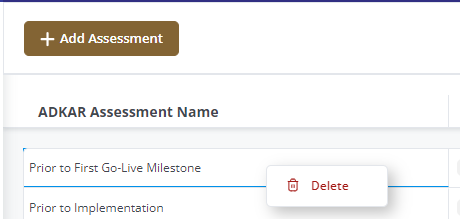
Additionally, you can delete an assessment from the index page, by right clicking on the ADKAR Assessment Name column for the assessment you would like to delete.
What does the [Move Assessments] under [Edit] allow me to do?
If you completed individual assessments for your Impacted Groups and want to regroup them under one assessment, you can do so by using the [Move Assessments] option.
For example, you many want to move a number of completed individual assessments into one ADKAR Assessment that represents a key milestone date. You can do this by either creating a new ADKAR Assessment and moving one or more group assessments over to it, or by moving group assessments over to another group assessment.
View here for an example demonstration.