![Prosci-logo-notagline-RGB-white.png]](https://www.prosci.com/hs-fs/hubfs/Prosci-logo-notagline-RGB-white.png?height=40&name=Prosci-logo-notagline-RGB-white.png)
Available For: ADKAR, OCC and ECM License Holders
Please Note: The Portal has gone through an update since November 9th 2024. If you have previously referenced this article and needed to review the full announcement you can view the article below: November Portal Changes
Admin Capability Overview:
1. How to Login
How to Login:
1. Click here to login: portal.prosci.com or you can login from our main website at prosci.com 
Navigating the Portal:
1. You can access the admin capabilities by going to "My Account" and selecting "Manage Organization"
What each section represents:
Manage Users and Tools:
Where you will see the users that are part of your license environment
This is where you go to add tools, remove profiles and make any necessary edits to the user profile. See what items are tools for you to upload versus resources that everyone sees.
Account Settings:
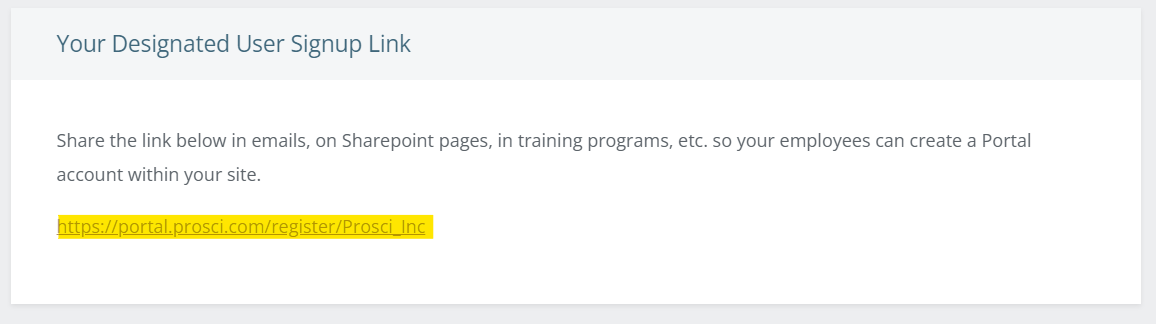
Where you will see what tools are listed and where you can get the designated user signup link from. (more on this link below)
Admin Reports:
where you can run reports on the users linked to your license account.
*You can read more about the available reports here
How to Add Users and Tools:
You have three options for adding new and existing users to your environment.
A. The most common and efficient way is through a batch upload.
1. From your profile, go to "Manage Users" and select "Batch Upload Users"
2. Use the drop down to select the tools and download the CSV file
3. Input first name, last name and e-mail
4. If the upload isn't for a certification program, you can leave the 3 day field blank
5. Input "Y" and leave the expiration override field blank.
6. Save the file and go back to the portal and upload CSV file
7. If you don't want to send a notification from the portal, you can uncheck the "Send invite email to all email addresses in file" below the upload
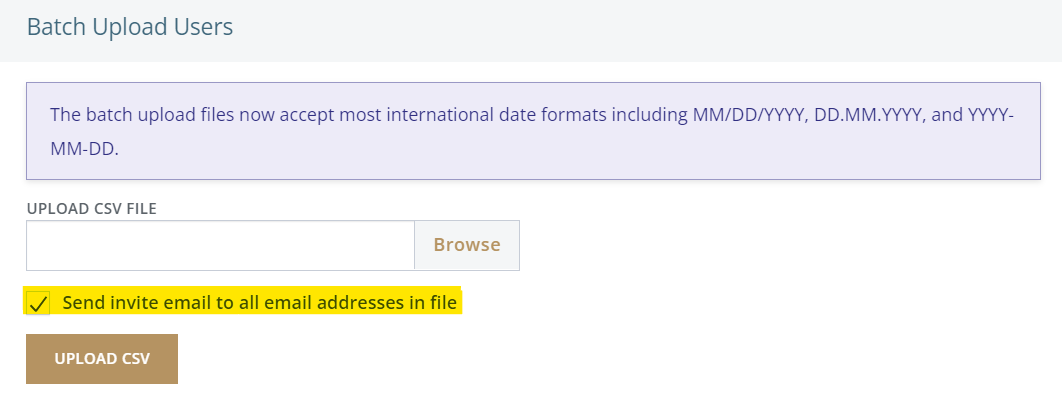
Note On This Option: Users that do not exist in the portal will still receive an e-mail to set their password
*Having issues with the batch upload? Click here to see common issues.
B. You can add new and existing users individually from the "Manage Users Page" by going to "Add Team Member"
C. For users to sign themselves up, you can share out the designated user signup link which will link new and existing profiles into your license account and assign resources and applicable tools. This can be found within the "Manage Organization" Page
 https://www.prosci.com/en/help-center/batch upload issues
Stay Connected! Join the Prosci License Holder Community Team Channel
Have questions about your license? Reach out to your Account Manager or [email protected] for help.