![Prosci-logo-notagline-RGB-white.png]](https://www.prosci.com/hs-fs/hubfs/Prosci-logo-notagline-RGB-white.png?height=40&name=Prosci-logo-notagline-RGB-white.png)
What is a Digital Credential or Badge?
Why is Prosci issuing Digital Badges?
Who is eligible for a Digital Badge and when can I expect to receive it?
What can I do with my Credly Badge?
How do I add or remove an e-mail address?
How can I remove my Badge and associated data?
What is a Digital Credential or Badge?
- A Digital Credential or Badge is a representation of a learning outcome, experience or competency based on the Open Badges Standard.
- Digital Badges that are issued by Credly are securely verified, allowing you to share them online easily via social networks like LinkedIn.
- Develop and share your Credly profile to showcase the badges you’ve earned and the achievements you’ve unlocked.
Why is Prosci issuing Digital Badges?
- There is a movement towards digital credentialing, which makes learning visible and verifiable.
- Each badge includes metadata that allows anyone see what you did to earn the credential and verify its validity.
Who is eligible to receive a Digital Badge and when I should I expect to receive it?
Anyone who attended a Prosci-direct training program is eligible to receive a badge and can expect the following:
- If you take the survey after your training, you will receive your badge within 3-5 business days.
- Please check your junk/spam mail for an email from [email protected]
- If you still have not received the email after 10 days, please email [email protected]
- If you did not complete the survey or your program has passed:
- For programs after April 2025, you will receive a badge 10 days after the program ends
- For program before April 2025, please reach out to [email protected] for support
What can I do with my Credly Badge?
Note: You must be logged in first in order to do any of the following.
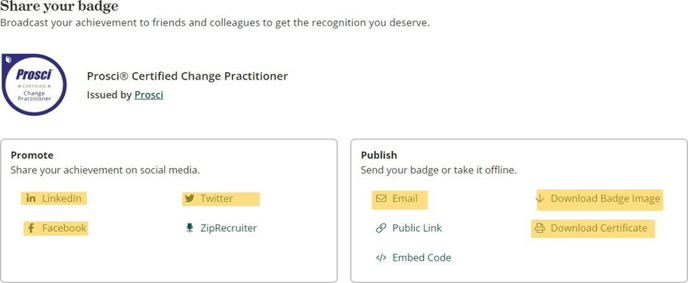
- Share on LinkedIn (or Another Social Media Platform):
- From the Dashboard, click on the Badge you'd like to share
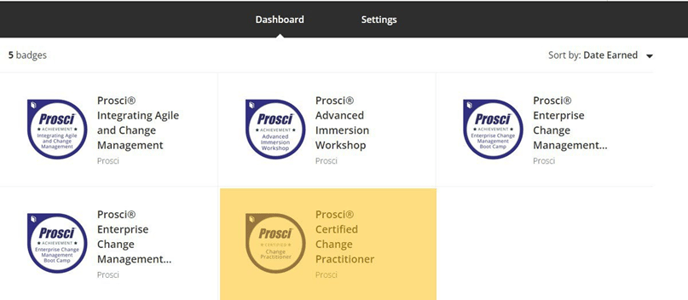
- Click on "Share" in the upper-right corner:
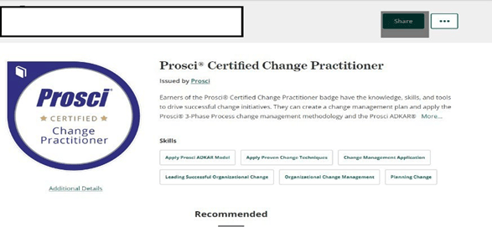
- From the Dashboard, click on the Badge you'd like to share
-
- Click on the LinkedIn icon on the left (you can also change the tab and share on Twitter or Facebook)
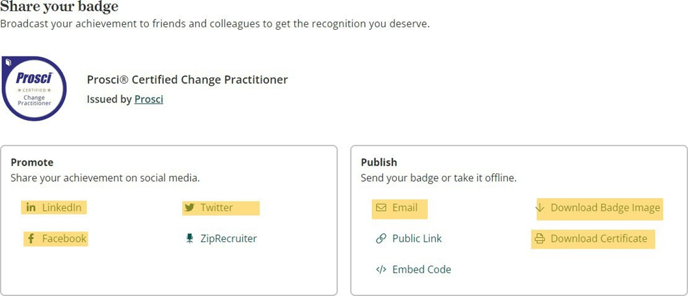
- Click on the LinkedIn icon on the left (you can also change the tab and share on Twitter or Facebook)
- Download and Print Certificate
- From the Dashboard – Click on the badge you want to reference
- Click "Share" in the upper-right corner just as before
- On the right hand side, you can then download your certificate as a PDF and print
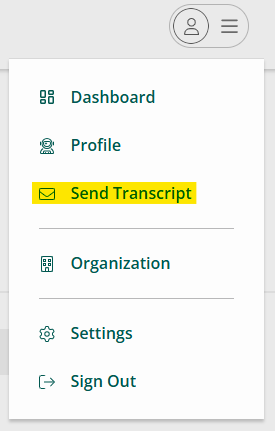
- Send Transcript for Verification Purposes
- In the upper-right corner, click the profile picture
- In the drop-down menu, select "Send Transcript"
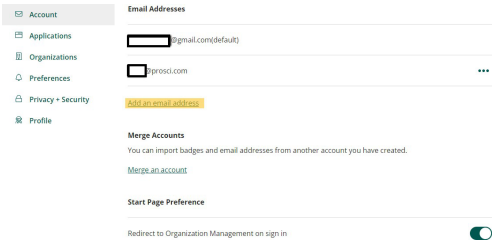
How do I add another or remove an e-mail address?
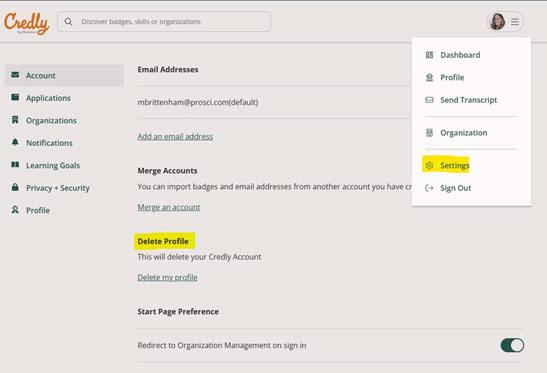
- In the upper-right corner, click the profile picture
- In the drop-down menu, select 'Settings"
- From here, you can add or remove an email address
I would like to remove my Credly Badge; How Do I Remove My Badge and Associated Data?
- In the upper-right corner, click the profile picture and click on "Settings"
- From here, you can now click on "Delete Profile" to have your information removed: