![Prosci-logo-notagline-RGB-white.png]](https://www.prosci.com/hs-fs/hubfs/Prosci-logo-notagline-RGB-white.png?height=40&name=Prosci-logo-notagline-RGB-white.png)
Use the Role Roster in Proxima to identify and manage roles that will support the change success.
How do I add a role?
- Click on the [+] icon next to the Role Name in the table.
- A content panel will open on the right side of the screen. Fill out the information in the form. As you fill in the data, Proxima will autosave your information.
- You can also add/edit information directly in the table once a role is created.
- The [Role Name] is the minimum information required to add a role or activity to the table.
How do I edit a role?
There are two ways to edit data in the tables:
- You can click on any of the cells in the table and edit directly in line. All changes will autosave.
- Hover on the [Role Name] and click on the [Details] button that appears. This will open the content panel and you can edit the information there.
How can I delete a role?
- Hover on the [Role Name] and click on the [Details ] button that appears. This will open the content panel
- In the top right corner of the panel will be a 3 dot ellipsis icon. Click on the icon and select [Delete].
Note: You will NOT be prompted to confirm the deletion of the role. Clicking [Delete] will automatically delete the role and cannot be undone.
Can I make bulk changes to activities?
At this time, no.
Can I leave notes on a role?
- Yes. Hover on the [Role Name] and click on the [Details] button that appears. This will open the content panel
- At the bottom of the panel there is an input field that reads [Add your notes here]
- Click in that field, type your note, and hit Enter or click [Save]
- The note will appear in the notes thread. Additionally, an icon will show next to the activity to indicate a note(s) has been added.
How do I edit or delete a note?
- For any note(s) that you have created, in the notes thread a 3 dot ellipsis icon will show in the upper right hand corner of the note. If another user/collaborator created the note, you will not see the ellipsis.
- Click on the ellipsis icon and select [Edit] or [Delete]. Follow prompts to edit or delete.
What formatting is available?
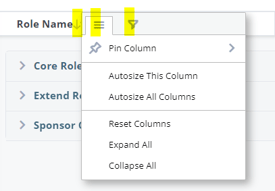
Hover over the column headers. An "up/down arrow" icon will appear where sorting is available for a column (more details below). A "three-line" icon will show indicating column formatting and filtering options.
- [Pin Column] allows you to pin/move column to the left or right.
- [Autosize] changes the width of the column to match the heading width.
- [Reset Columns] removes any column formatting made by the user. It will not reset the content, just the formatting of the columns (i.e. if a user autosizes the columns and pins a column to the left, clicking Reset Columns will undo the autosize and pin).
- [Expand All] opens the sections of the table (Role Type) to reveal all the information. [Collapse All] closes the table sections, hiding the information (as seen in the screen shot below).
Can I sort roles in the tables?
- Hover over the column headers. If sorting is enabled for that field you will see an "up/down arrow" icon appear.
- Click on the icon and it will sort ascending. Click it a second time and it will sort descending. Click it a third time and the sort will be removed.
You can also order roles using 'Drag and Drop'
- Hover over the left of the [Role Name] or [Activity Name]
- A 'grid' icon will appear.
- Click and hold the grid icon and drag the item to a new position in the order
Notes :
- Sorting does not persist from page to page. So, if you a leave a page and come back, your sort will no longer be applied.
- All collaborators on the project will see the new sort order you set.
- You cannot drag roles to new sections and re-assign them. You can only drag and sort a role within a section.
- Sorts are specifics to each page.
- The sort order you set with drag and drop is not available in exports. Exports are simply sorted by when activities were created.
- If you are actively sorting by a specific column header, the drag and drop feature is disabled.
How do I filter the roles in the table?
- Hover over the column header you want to filter by. A 'three line' icon will appear to the right side of that column header.
- Click on the icon and a column settings panel will open up. At the top of the panel, there is a filter icon. Click on that icon.
- Depending on the type of data in the field, you will be able to either type in, select a date, or pick from items in a list to filter by. For multi-select fields, the filter runs an "or" filter. So it will included any row that has either of the selected options available.
Note: Filters do not persist from page to page. So if you a leave a page and come back, your filter will no longer be applied.
How do I change the column width?
- Hover over the line in between column headers and your pointer will change to a horizontal arrow.
- Click and hold to drag the column size to your desired width.
You can also Autosize the columns:
- Hover over the column header you want to Autosize. A 'three line' icon will appear to the right side of that column header.
- Click on the icon and a column settings panel will open up.
- Select [Autosize This Colum] or [Autosize All Columns] The columns will expand automatically to fit the text.
Note: Autosize do not persist from page to page. So, if you a leave a page and come back, your Autosize will no longer be applied.
Can I rearrange the columns?
Not exactly. We do not allow you to drag columns from left to right in the Roles table. With that said, you can "Pin" columns to the left or right in the view for easier editing and viewing.
- Hover over the column header you want to pin. A 'three line' icon will appear to the right side of that column header.
- Click on the icon and a column settings panel will open up.
- Click on [Pin Column] and choose from the options.
- The column will move to the side and will be 'stick' when scrolling horizontally on the page.
- To remove the pin, do the same steps and click on [Pin Column] and choose [No Pin]. The column will return to its original place.
I can't see the full role name in my table, what should I do?
Sometimes the data in fields can get long and will get cutoff. You can either change the column width (see options above under How do I change the column width?) or hover over the text. If the text is truncated, on hover, a popup will show up with the full text of that field.
How do I export the data from this table?
Role Rosters can be exported as a basic CSV document or PDF Canvas by clicking the [Export] button.