![Prosci-logo-notagline-RGB-white.png]](https://www.prosci.com/hs-fs/hubfs/Prosci-logo-notagline-RGB-white.png?height=40&name=Prosci-logo-notagline-RGB-white.png)
On This Page:
Collaboration and Public Links
Edit Permissions of Collaborators
What is the Collaboration and Public Links features in Proxima?
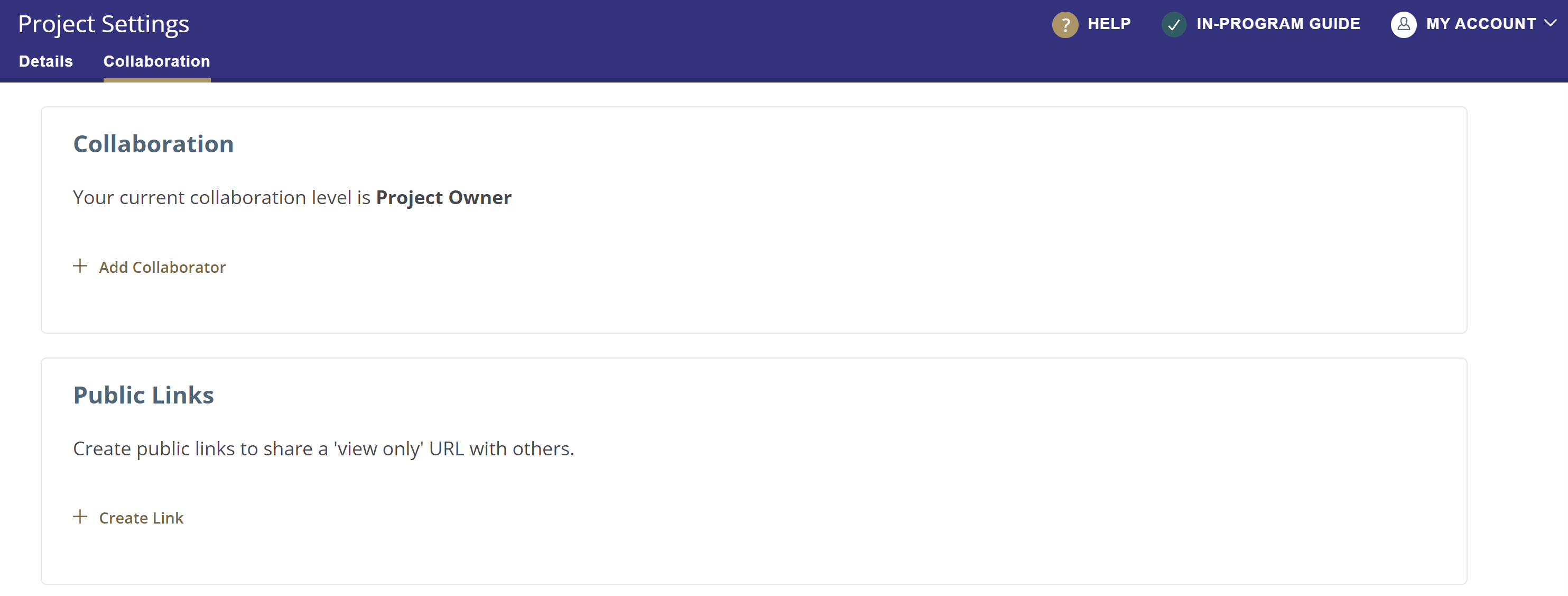
The Collaboration feature in Proxima was created to allows users to invite other Proxima users to contribute on projects. The Public Links feature allows users to share a static, view-only URL of a Proxima project to non-Proxima users.
Please Note: The Collaboration feature in Proxima does not support 'real-time collaboration' meaning that multiple collaborators can not simultaneously edit a page/assessment in Proxima at the same time.
Please Note: In the recent Proxima Release 2022.2 we introduced some user configuration options into sections of the tools (i.e hiding items in the side-nav; creating and saving views in the Impacted Groups and Blueprints and Plans pages). Any configurations made by a user will impact all Collaborators as well.
Public Links
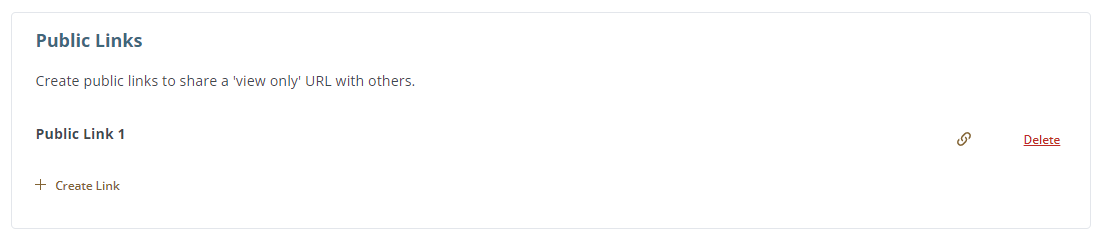
The Public Link feature allows a user to create a read-only URL link that they can provide/share out to non-Proxima users who need/want to view the project information in Proxima.
Users can create a Public Link by clicking the [+ Create Link] button which will auto-generate a new link.
- The name of the link is auto-generated. You can edit it by clicking directly on the name. Note: The name is for your use only and will not appear anywhere with the link if you share it.
- Click on the link icon to create a a copy of the link that you can paste it into whatever format you are using to share it out with your relevant audiences.
- Deleting a link will 'deactivate' it, making it no longer usable/accessible.
How do I add a Project Collaborator?
- In Proxima, click on the project you would like to add collaborator(s) to.
- Click on [Project Settings] in the side-navigation pane.
- Click on the [Collaboration] section.
- Click the [+ Add Collaborator] button which will open a form where you can add the Prosci Portal user email of the collaborator and level you would like them to have. Note: In order to add a collaborator to the project, you must know the Prosci Portal user email and they must have access to Proxima in order to be added.
- Upon clicking [Save]:
- If the email you entered is valid, you will be asked to [Confirm Collaborator]. Upon clicking [Invite], the user in question will be added as a collaborator and will be notified via email.
- If the email entered is invalid, you will receive a "No user found with that email" message, with the option to [Try Again].
Available Collaboration Levels/Permissions: Specifies what type of access level you want the collaborator to have. Once the collaborator is added, the project will show on the landing page of the collaborator’s Proxima.
- Read Only - Gives user 'view only' access to the project.
- Contributor - Gives user full editing permissions to the project.
- Administrator - Gives user Admin rights to add or remove collaborators and change user collaboration levels on the project.
- Project Owner - Gives user full owner rights to the project, which includes all collaboration level rights, plus the ability to delete the project and/or change ownership.
How do I remove a project collaborator?
In order to remove a collaborator from the project, you must be the Owner or have Administrator level access.
- Under the [Collaboration] section, choose the collaborator you would like to remove.
- Click the [Remove] button and confirm removal.
How do I change the permissions of a collaborator?
In order to change the level/permissions of a collaborator from the project, you must be the Owner or have Administrator level access.
- Under the [Collaboration] section, choose the collaborator you would like to remove.
- Click on the [Collaboration Level] dropdown in the table and choose what level you would like to change the collaborator to.
How do I leave a project?
In Proxima, choose the project you would like to leave and click on [Project Settings] in the side-navigation pane.
- Click on the [Details] section. Scroll down to the area labeled [Danger Zone].
- Click on the [Leave Project] button and confirm.
Note: If you are the Project Owner, you must assign a new project owner before you can leave the project.