![Prosci-logo-notagline-RGB-white.png]](https://www.prosci.com/hs-fs/hubfs/Prosci-logo-notagline-RGB-white.png?height=40&name=Prosci-logo-notagline-RGB-white.png)
On this page:
Features
Kaiya can be accessed in a few different ways:
- Directly using the URL
- From the Prosci Portal [My Resources] page
- Or within the Hub Solution Suite by clicking on the AI icon in the side-navigation
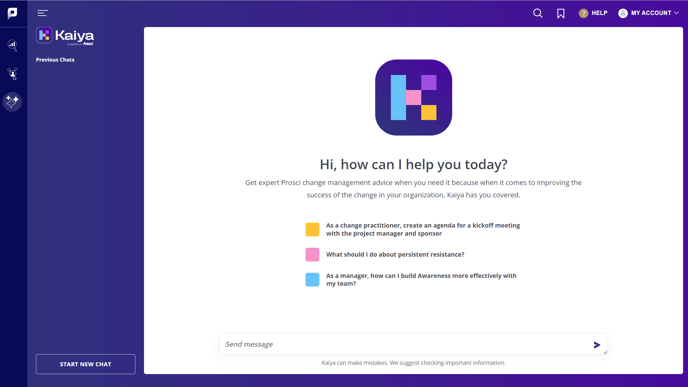
Start New Chat
- The default landing page for Kaiya is a new chat window. You can begin a session by clicking into the message box and sending a prompt.
- After you send your first message/prompt, Kaiya will automatically name your session and display it under the [Previous Chats] in the side-navigation.
- You can continue a session by asking follow-up questions or providing additional requests to refine the response, or start a new chat session by clicking on the [Start New Chat] from the side-navigation.
Rename or Delete Chat 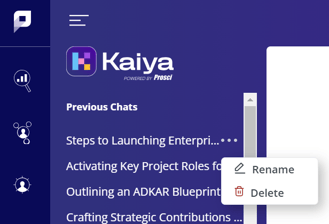
- Hovering over the chat name
- Click the three-dot ellipse that appears
- Choose either [Rename] or [Delete]
- A pop out will appear with the option to enter a new name or confirm deletion
Response Expectations
- Kaiya is equipped with the knowledge and resources to provide guidance and research on change management. It has access to a wide range of materials, including Prosci Blogs, Thought Leadership Articles, Webinar transcripts, and extensive content from the Knowledge Hub and Research Hub. Additionally, it utilizes OpenAI's GPT4 Large-language Model (LLM) to deliver natural language responses that are tailored to the user's specific needs.
- Kaiya is equipped to offer relevant links to downloadable resources and additional content for further exploration.
- Kaiya offers users the option to format responses with basic formatting like bulleted lists, numbered lists, and tables to enhance clarity and organization. Users can also provide specific instructions in their prompts to tailor how they want the response to be presented, however there are limitations. Please see the Limitations section below for more details.
Providing Feedback
- Your feedback is incredibly valuable to us, as it is essential in improving the quality of our AI responses.
- You can provide feedback on Kaiya responses directly in the tool by using the thumbs up and thumbs down icons at the bottom of the response.

- Selecting the thumbs down option will trigger a pop-up requesting further details on why the AI response did not meet your expectations. Providing this additional information assists us in identifying areas for enhancement and improvement in the tool.
Limitations
Although Kaiya offers valuable insights and solutions to various change management queries and dilemmas, it's important to note some limitations that currently exist:
- File uploads are currently not supported by Kaiya
- Kaiya currently does not offer any export options apart from the 'Copy to Clipboard' button, which allows users to easily transfer responses to other resources
- Kaiya currently does not have the capability to create various types of documents or outputs, such as PowerPoint presentations
- Kaiya currently does not have the capability to generate images
- Kaiya currently does not offer integration options with Proxima or any other tools
Although OpenAI has translation capabilities built in that Kaiya can leverage to read questions in other languages and respond in different languages when prompted to, it has not been trained on Prosci's approved translation glossaries, terminology or the translated content available in Knowledge Hub so you may see some discrepancies.
We will continue to evaluate localization needs and requirements and work towards enhancements in this capability in future iterations.