![Prosci-logo-notagline-RGB-white.png]](https://www.prosci.com/hs-fs/hubfs/Prosci-logo-notagline-RGB-white.png?height=40&name=Prosci-logo-notagline-RGB-white.png)
Part of the Prosci Hub Solution Suite, Proxima is a cloud-based web application tool (accessed through the Prosci Portal), that supports Practitioners in applying the Prosci Methodology on a project or change initiative, focusing on the people side of change.
Explore the features of Proxima with our new [Getting Started] page!
Overview
When users first open Proxima, they will be directed to the project landing page. Users can create a new project by clicking on the [Start New] button at the top of the page. All projects (Active and/or Complete) will show on this landing page in a tile form, as well as be listed on the side-navigation panel.
Note: Projects will show in the order that they are created. The last tile is the most recently added project.
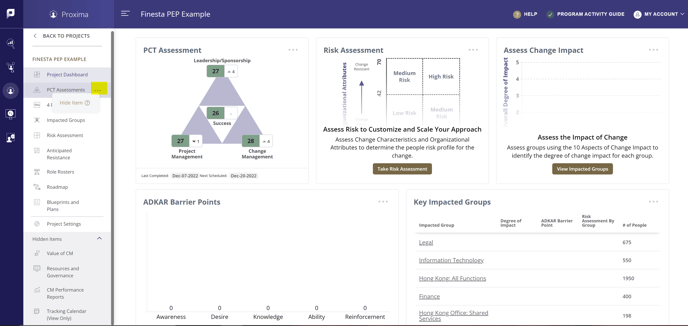
Users can access a project by clicking on the project tile or side-navigation page. The default landing page will be the Project Dashboard. Users can navigate through Proxima using the side-navigation panel, which provides a list of all the activities and assessments available in the tool.
Proxima Features
View and access all assessments and tools laid out directly in the side-navigation panel.
Users can configure their side-nav by hiding sections that they don't use or need on a given change, allowing them to focus on the most important things and right size their change management efforts. See below for more information on how.
- PCT Assessments: Track project health using the PCT Assessment. Conducting multiple PCT Assessments over the lifecycle of the project enables you to establish a baseline and monitor progress in project health.
- 4 P's Model: Capture critical details about the change including the project name, purpose, particulars, and people impacted.
- Value of CM: Capture important details that will help you make the case for why Change Management is important for your project.
- Impacted Groups: Define impacted groups and assess the change impact to support individuals through change.
- ADKAR: Easily schedule ADKAR Assessments for individual or multiple impacted groups at once.
- Risk Assessment: Assess risk and scale to customize your Change Management approach.
- Anticipated Resistance: Capture anticipated resistance and develop special tactics to address with Impacted Groups.
- Resources and Governance: Capture details to develop a Governance model that will support your Change Management approach.
- Role Rosters: Identify and activate required roles to support change success.
- Roadmap: Capture key project dates and ADKAR milestones dates to align people-side activities and timelines to the project lifecycle.
- Blueprints and Plans: Create and manage your Change Management activities to drive outcomes.
- CM Performance Reports: Track Change Management activities by creating and managing progress reports.
- Tracking Calendar (View Only): Track and review performance in a calendar view of key dates and activities.
Project Settings:
- Details: Project information, exports and settings to delete or leave a project
- Collaboration: Collaborate by adding other Proxima users to the project or creating public links to share project information
Configure your side-navigation per project
- Hover over the title on the side-navigation and click on the 3-dot ellipse icon and click [Hide Item].
- Hiding items will NOT remove them from Proxima, or delete any data within those pages.
- [Hidden Items] can be accessed from the side-nav, under the Project Settings icon and can be added back anytime by clicking on the 3-dot ellipse icon and choose [Unhide Item].
- Hiding items is project specific, meaning changes to the side-nav will not carry over to other projects in Proxima.
- Hiding items will apply to the side-nav for ALL collaborators on the project.